Lead Sheet Panel
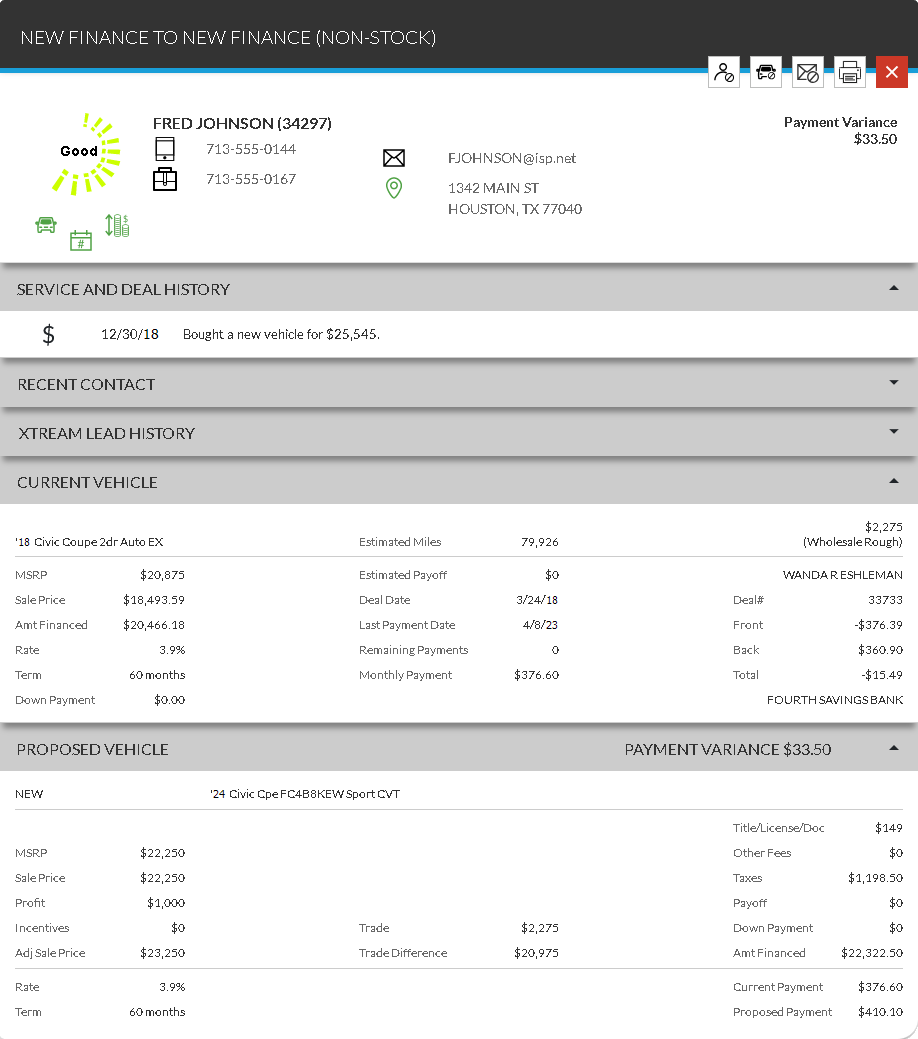
The Lead Sheet panel is used to review a variety of information for the selected prospect, such as service and deal history, when the customer was last contacted, and the customer's current vehicle information.
Note - The name of this panel varies based on the type of lead sheet assigned to the prospect. For example, if the prospect is assigned to the Finance lead sheet type, this panel displays as the Finance panel.

|
The Lead Sheet panel can be accessed using one of the following methods.
|
To indicate that the lead has been reviewed and necessary actions have been performed, click the  (Unworked) icon. The (Unworked) icon toggles to the
  (Worked) icon, and the name of the user who worked the lead displays in the Worked By column in the Service Hot Lead Details section, the Upcoming Appointments Details panel, and the Campaign Details panel. If the (Unworked) icon was clicked in error, click the (Worked) icon to indicate that the lead has not been worked and to clear the entry in the Worked By columns.
Note - Marking leads as worked is only available if FOCUS or the Customer application
Customers can be unsubscribed from receiving communications for campaigns using the following icons.
-
 (Customer Opt Out). Access the Customer Opt Out window, where the customer can be unsubscribed from receiving any campaign communications.
 -
 (Vehicle Opt Out). Access the Vehicle Opt Out window, where the customer can be unsubscribed from receiving campaigns for a vehicle.
 -
 (Stop Communications). Access the Stop Communications? window, where the customer can be unsubscribed from receiving communications for an individual campaign.
Similarly, customers that have been unsubscribed from receiving communications for any campaign or campaigns for specific vehicles can be resubscribed using the following icons.
-
 (Customer Opt In). Access the Customer Opt In window, where the customer can be resubscribed to receive campaign communications.
 -
 (Vehicle Opt In). Access the Vehicle Opt In window, where the customer can be resubscribed to receive campaigns for a vehicle.
To print the Lead Sheet panel, click the  (Print) icon. The lead sheet displays on a separate browser window, where the lead sheet can be reviewed and printed.
 Contact Information Section
The unlabeled Contact Information section is used to review information about the selected customer, such as the customer's phone number, Email address, and street address. This section also displays whether a customer can be contacted using his cell phone number, his home phone number, or his Email address.
An * (Asterisk) displays to the left of customer information fields that have been updated by American Honda Finance Company (AHFC). For example, if an update to a customer's cell phone number was recorded by AHFC but the number was not yet updated in the dealer management system (DMS) or the XtreamService application, * displays to the left of the customer's cell phone number.
Note - Customer information can only be automatically updated at dealerships with verified Honda READS accounts. For more information about the Honda READS program, contact XtreamService Support. To access support information, click the  (More) icon and then click the Contact Support link.
The following items display in the Contact Information section
Prediction Indicator: (Not labeled) An icon displays to indicate how likely the corresponding customer is to purchase a vehicle.
The following icons can display.
-
 (Okay)
 -
 (Good)
 -
 (Great)
 -
 (Wow)
(Wow)
Reason: (Not labeled) Icons display to indicate the top three factors used to determine how likely the customer is to purchase a vehicle. These icons can be used to review the prospect's vehicle interests, the prospect's financing preferences, or information about the monthly payment and finance term for the proposed vehicle.
The following icons can display.
-
 (Model Downgrade)
 -
 (Model Upgrade)
 -
 (Same Model)
 -
 (Lower Monthly Payment)
 -
 (Similar Monthly Payment)
 -
 (Flexible Monthly Payment)
 -
 (Higher Monthly Payment)
 -
 (Retail Financing)
 -
 (Lease Financing)
 -
 (Cash - No Financing)
 -
 (Truck)
 -
 (Van)
(Van) -
 (Car)
(Car) -
 (SUV)
(SUV) -
 (Same Make)
 -
 (Shorter Term)
 -
 (Similar Term)
 -
 (Longer Term)
 -
 (New)
(New) -
 (Used)
Customer Name: (Not labeled) The customer's name and dealer management system (DMS) ID number display.
Pre-Screen: (Not labeled)(Link) The result of the pre-screen request submitted for the customer displays as a link. Click this link to display detailed pre-screen results on the 700Credit web site on a separate browser tab.
Note - Pre-screen results are only available if FOCUS or the Customer application
This field only displays if a pre-screen request has been submitted for the customer. In addition, the link in this field is only available when Approved, No Hit, or No Offer displays.
Cash Difference: The difference between the price of the proposed vehicle and the price of the customer's current vehicle displays.
Note - This field only displays for Cash Non-Stock lead types.
Estimated Equity: The estimated equity of the customer's current vehicle displays.
Note - This field only displays for Equity lead types.
Market Value: The estimated trade-in price of the customer's current vehicle displays.
Note - This field only displays for Market Value lead types.
Payment Variance: The payment variance on the proposal currently selected for the customer displays.
Note - This field only displays for Retail Non-Stock lead types and Lease Non-Stock lead types.
Cell Phone: (Not labeled) An icon displays to indicate whether the customer can be contacted using his cell phone number. The customer's cell phone number also displays.
The following icons can display.
-
 (Cell Phone)
 -
 (Cell Phone: Do Not Call)
Home Phone: (Not labeled) An icon displays to indicate whether the customer can be contacted using his home phone number. The customer's home phone number also displays.
The following icons can display.
-
 (Home Phone)
 -
 (Home Phone: Do Not Call)
Work Phone: (Not labeled) An icon displays to indicate whether the customer can be contacted using his work phone number. The customer's work phone number also displays.
The following icons can display.
-
 (Work Phone)
 -
 (Work Phone: Do Not Call)
Email: (Not labeled) An icon displays to indicate whether the customer can be contacted using his Email address. The customer's Email address also displays.
The following icons can display.
-
 (Email)
 -
 (Email: Do Not Email)
 (Address): The customer's street address displays.
Service and Deal History Section
The Service and Deal History section displays information about recent service appointments and vehicle deals where the customer purchased a vehicle.
The following columns display in the Service and Deal History section.
Type: An icon displays to indicate the type of visit to the dealership.
The following icons can display.
-
 (Service Appointment or Repair Order)
 -
 (Deal)
 -
 (Financed by AHFC)
Date: The date of the customer's visit to the service department or the date the vehicle deal was completed displays.
Description: A description of the customer's service visit or vehicle deal displays. If the customer financed his vehicle through American Honda Finance Corporation (AHFC) or another financial institution, the amount financed also displays.
Recent Contact Section
The Recent Contact section is used to review recent interactions from the XtreamService application with the lead on the lead sheet, such as Email messages and direct mail. In addition, this section can display when communication about the lead is stopped with the customer.
Note - Communication is stopped using the Stop Communications? window.
To view the template used to send a letter or Email message, select a row in the Recent Contact section. The View Communication panel displays, where the template can be reviewed.
The following columns display in the Recent Contact section.
Type: An icon displays to indicate the method by which the customer was contacted.
The following icons can display.
-
(Customer Opt In)
-
(Customer Opt Out)
-
 (Direct Mail)
 -
 (Email)
 -
(Stop Communications)
-
(Vehicle Opt In)
-
(Vehicle Opt Out)
Date: The date on which the customer was contacted displays. Alternatively, the date on which the customer was unsubscribed displays.
Description: A description of the contact with the customer displays. Alternatively, the reason for unsubscribing displays.
User: The user who unsubscribed the customer displays.
Note - This field only displays when the customer has been unsubscribed.
Xtream Lead History
The Xtream Lead History section is used to review the leads generated for a prospect during the past year. In addition, this section displays the date the lead was generated, the campaign used to generate the lead, and whether an Email message or direct mail was sent.
The following columns display in the Xtream Lead History section.
Date: (Not labeled) The date the lead was generated displays.
Campaign: (Not labeled) The name of the campaign used to generate the lead displays.
Email: (Not labeled) Whether an Email message was sent for the lead displays.
Direct Mail: (Not labeled) Whether direct mail was sent for the lead displays.
Current Vehicle Section
The Current Vehicle section displays vehicle information for the customer's current vehicle. In addition, the estimated equity of the vehicle or the market value of the vehicle displays in the section title bar for Equity lead types and Market Value lead types.
Note - The fields that display in this section vary based on the type of lead displayed.
The following items display in the Current Vehicle section.
Amt Financed: The amount financed for the customer's current vehicle displays.
Back: The total back-end gross profit amount earned from the customer's current vehicle deal displays.
Contract#: The number of the extended service contract displays.
Contracted Miles: The total mileage agreed upon for the lease deal displays.
Current Residual: The estimated current value of the customer's leased vehicle displays.
Deal Date: The date the customer's current vehicle deal was closed displays.
Deal#: The deal number for the customer's current vehicle deal displays.
Down Payment: The down payment amount for the customer's current vehicle deal displays.
Estimated Miles: The estimated mileage for the customer's current vehicle displays.
Estimated Payoff: The estimated amount remaining to be paid off for the customer's current vehicle displays.
Expires: The expiration date and mileage of the extended service contract display.
Front: The total front-end gross profit amount earned from the customer's current vehicle deal displays.
Institution: (Not labeled) The name of the financial institution used to finance the customer's current vehicle displays.
Last Payment Date: The date of the final payment on the customer's current vehicle deal displays.
Lease Term Date: The date of the final payment on the customer's current lease deal displays.
Money Factor: The money factor of the customer's lease deal displays.
Monthly Payment: The monthly payment amount for the customer's current vehicle deal displays.
MSRP: The manufacturer suggested retail price (MSRP) of the customer's current vehicle displays.
Net Cap Cost: The difference in the gross capital cost and the total capital reduction for the customer's lease deal displays.
Rate: The interest rate of the customer's current vehicle deal displays.
Remaining Payments: The number of payments remaining for the customer's current vehicle deal displays.
Residual %: The estimated value of the customer's vehicle at the end of the lease term displays as a percentage.
Sale Price: The sell price of the customer's current vehicle displays.
Salesperson: (Not labeled) The salesperson associated with the customer's current vehicle deal displays.
Service Contract Name: The name of the extended service contract displays.
Service Contract Type: The type of extended service contract, such as Maintenance, displays.
Term: The term of the customer's current vehicle deal displays.
Total: The total gross profit amount earned from the customer's current vehicle deal displays.
Value Source: The value for the customer's current vehicle displays. The name of this field varies based on the entry in the Book Value field in the Proposed Deal Settings panel on the Proposal Generation Settings screen.
Note - The name of this field displays as AHFC for Honda customers whose information has been automatically updated using information from American Honda Finance Company (AHFC). Customer information can only be automatically updated at dealerships with verified Honda READS accounts. For more information about the Honda READS program, contact XtreamService Support. To access support information, click the (More) icon and then click the Contact Support link.
Vehicle: (Not labeled) The year, model, and trim of the customer's current vehicle display.
Proposed Vehicle Section
The Proposed Vehicle section displays information for the proposed vehicle for the customer. In addition, the payment variance displays in the section title bar for Retail Non-Stock lead types and Lease Non-Stock lead types.
Note - This section does not display for the Equity lead type or the Market Value lead type. The fields that display in this section vary based on the type of lead displayed.
The following items display in the Proposed Vehicle section.
Adj Sale Price: The adjusted sell price for the proposed vehicle deal displays.
Amt Financed: The amount to finance for the proposed vehicle displays.
Cash Difference: The total amount of the proposed vehicle deal after the trade-in value and processing fees have been applied displays.
Current Payment: The customer's current monthly payment displays.
Days in Inventory: The number of days the proposed vehicle has been in inventory displays.
Down Payment: The down payment for the proposed vehicle or lease deal displays.
Gross Cap Cost: The gross capital cost of the proposed lease deal displays.
Lease Equity: The equity of the customer's current lease deal displays.
Miles: The mileage of the proposed vehicle displays.
Money Factor: The money factor of the proposed lease deal displays.
MSRP: The manufacturer suggested retail price (MSRP) for the proposed vehicle displays.
Negative Equity: The negative equity of the proposed vehicle displays.
Net Cap Cost: The difference in the gross capital cost and the total capital reduction for the proposed lease deal displays.
Other Fees: The amount of other fees associated with the proposed vehicle deal displays.
Payoff: The payoff amount for the customer's current vehicle displays.
Profit: The potential amount of profit for the proposed vehicle deal displays.
Proposed Base: The base monthly payment for the proposed lease deal displays.
Proposed Payment: The monthly payment for the proposed vehicle or lease deal displays.
Rate: The interest rate of the proposed vehicle deal displays.
Remaining Payments: The number of payments remaining for the proposed vehicle displays.
Residual: The estimated value of the proposed vehicle at the end of the lease term displays as a percentage.
Sale Price: The sell price for the proposed vehicle displays.
Stk#: The stock number of the proposed vehicle displays.
Taxes: The amount of taxes for the proposed vehicle deal displays.
Term: The term of the proposed vehicle or lease deal displays.
Title/License/Doc: The total amount for tax, licensing, and documentation fees for the proposed vehicle deal displays.
Trade: The trade value of the customer's current vehicle displays.
Trade Difference: The difference between the value of the proposed vehicle and the value of the trade-in vehicle displays.
Type: (Not labeled) The stock type of the proposed vehicle, such as New or Used, displays.
Vehicle: (Not labeled) The year, model, and trim of the proposed vehicle display.
Click here for a list of products that may be mentioned in this help file.